Mobile access available through this guide
This guide provides iPhone browser instructions. No native iPhone download or verified Android package is supplied. A compatibility claim on a source page is not a tested installation.
The Android route checked earlier in the source snapshot returned 404. No package was obtained or installed. Read the download status before using installation instructions. Access and local authorization are separate questions.
Android checks · iPhone browser steps · Update or remove · Fix a problem
Check Philippine app availability
The illustration identifies the checks to make before installing an app. It is an editorial guide, not an operator screenshot, an App Store listing or a download link.
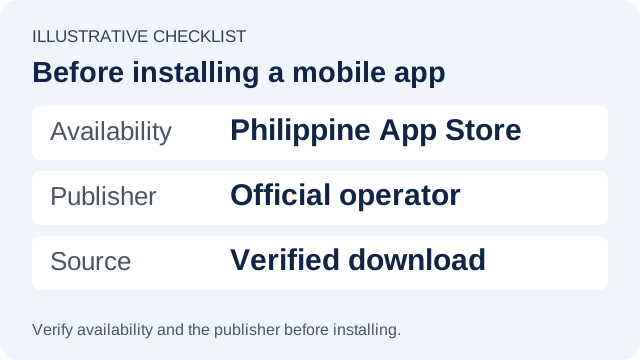
Confirm availability in the Philippine App Store and the official publisher for iPhone. For Android, obtain a current verified package from the operator and check its address before downloading. This guide provides iPhone browser instructions ; no verified Android download is supplied.
Android package or mobile website?
Swipe or scroll horizontally to read all columns.
| Option | What it is | Current status |
|---|---|---|
| Android APK | An installable Android package. | Download link pending. Version, signing certificate and device compatibility have not been checked. |
| iPhone home-screen website | The website opened from an icon added through Safari. | Instructions below; this is web access, not a native App Store installation. |
| Mobile browser | The website opened directly in a browser. | No separate app download; check the address and whether access is available and permitted for your location. |
Current access and Android download status
This guide provides iPhone browser instructions. No native iPhone download or verified Android package is supplied. A compatibility claim on a source page is not a tested installation.
Swipe or scroll horizontally to read all columns.
| Item | Status | Limits |
|---|---|---|
| Android link | Awaiting a current download source. | No APK version, size, signing certificate or installation has been verified. |
| Earlier Android route |
in the source snapshot, the public button at
1xlite-0673.pro
led from
/download/apk
to
/en/download/apk
and returned 404 in browser and HTTP checks.
|
This is a dated result for that route, not a compatibility test or a download link. |
| Published Android requirement | The regional APK explainer states Android 5.0 or later. | The current package’s actual minimum OS remains unverified. |
| iPhone | Browser access only in this guide; no native iPhone app download is offered. | Home-screen access uses the website. Device performance and a PH player account were not tested. |
If a download returns 404, keep the URL and error. Do not treat an HTML error page saved with an APK filename as an app. Wait for a supported source rather than guessing a replacement address.
Android: check before installing
The download link is pending. Use these checks only after a current Android source is available. They are not a record of a tested 1xBet installation.
- Confirm the source and compatibility. Once a current source is supplied, inspect its final address and published requirements. Compare them with your phone’s Android version and available storage. If version, publisher or requirements are unclear, ask support before installing.
- Check the download result. Use the completed file from that verified route, not an attachment from an unsolicited message. Record any download error. The name “1xBet.apk” alone does not establish authenticity.
- Read the installer and protection messages. Android may require permission for the browser or file manager to install a package. If you knowingly grant it to a trusted source, restrict it to that source and revoke it afterwards. Do not switch off Play Protect or ignore a harmful-app warning to complete installation.
- Review the result before signing in. Compare the installed app’s identity and version with the source. Review permission requests; if something is unexpected, stop and ask for an explanation. Preserve access to your existing account rather than registering again.
See Google’s guidance on app downloads and Play Protect . If you cannot establish the source, a verified and locally permitted mobile website avoids installing that package.
iPhone: use Safari or add a website icon
Use the website in Safari. No native iPhone app is offered through this guide, and an Android APK cannot be installed on iPhone.
Website on the Home Screen
- Open the verified website in Safari and check its address.
- Open Share. In some Safari layouts it is inside the Page Menu. Choose Add to Home Screen; if missing, look under Edit Actions in the Share list.
- Review the name and address. If your version offers Open as Web App, select it for app-style access, then tap Add.
These steps follow Apple’s web-app instructions ; controls vary by iOS version. This creates web access and does not establish App Store approval.
Update or remove an Android app or website icon
First identify what you installed. Keep your account identifier and recovery access before removing an app or clearing its data.
Use the matching update route
- Android APK
- Return to the same verified distribution route and compare the installed and offered versions. If the update reports a package or signature conflict, ask the publisher to explain it before uninstalling the existing app. Avoid random older builds.
- Home-screen website
- The website is maintained online; there is no APK update to install. Keep the browser and operating system updated. If the icon opens an old or unexpected address, verify the current address before replacing the shortcut.
Remove the app or shortcut
- Android: open the device’s app settings, select the installed app and choose Uninstall. Menu names vary; see Google’s removal guidance .
- Website icon: hold the icon and use its removal control. This removes the shortcut or web app from the device; it does not request account closure.
Uninstalling is separate from closing an operator account, self-exclusion or resolving a pending payment. For a gambling break or account restriction, use the responsible-gambling guide and the operator’s confirmed process.
What to send with a technical support request
No PH app was installed or tested, and no APK hash, signing certificate or device performance was verified.
Before sharing data or installing files
Check the final domain, verify support contacts and keep authentication codes private. Read the practical security checklist before following a new link, sending evidence or installing a file.
Register at 1xBet
Read the terms shown for your eligible account before registering or making a payment.
Register at 1xBet21+; eligibility and local authorization must be checked. About this guide .
Sources and further reading
- Regional mobile link: download routes inspected in the source snapshot
- Regional APK explainer: Android 5.0+ claim
- Apple: add a website to the Home Screen
- Google: download Android apps
- Google: Play Protect
Source links are provided for checking current information. A global page does not confirm Philippine account conditions.
Work out where an installation is failing
Choose the symptom you see. These are general checks, not errors reproduced in a tested PH app. The public download-route error is documented in the source check above .
If the link returns 404, record the URL and time and ask for the current supported route. Do not treat an error page saved with an .apk filename as an app, or replace it with a modified package from an unrelated site.
For a transfer that starts but stops, check the connection, free space and exact error. Retry only from the same verified source. Avoid deleting personal files or installing a “cleaner” just to make room; review what you can safely remove.
Compare the OS version and package requirements. For a package/signature conflict, keep the error text and ask the publisher about the update path. Do not uninstall first if you have not preserved recovery access.
Stop and read the warning. Recheck the source and contact the publisher through a verified route. Do not disable protection or choose a modified package as a workaround.
Open the website in Safari and check Share → Edit Actions for Add to Home Screen. Controls vary by iOS version. You can continue using the browser without adding an icon; no APK or foreign App Store account is needed.
Record the app and OS versions, then try reopening and restarting the device. Compare with the same verified website in the browser. On Android, clearing cache removes temporary data; clearing storage removes app data. Preserve recovery access before considering the latter. Google explains the difference .
Use the login and recovery guide . A working installation does not resolve an inaccessible phone, wrong sign-in method or account restriction. Do not create a duplicate account to test it.
Check which feature is requesting access and why. Read the explanation before granting it; ask support if it is unrelated or unclear. Do not supply passwords, OTPs or recovery codes in response to a permission prompt.